Completion requirements
View
4. Select
The select tag is
used to give the user a list of choices in a dropdown layout. Like the radio
button, you can set it so that only one option can be chosen at a time. But you
can also set it to accept multiple options from the user by using the attribute
multiple, and press on the ctrl or shift key when making
several selections
Notice the use of
<label> tag in this code. Remember the discussion of this tag from the
last module. The <label> tag works here in the same way that label works
for input.
Sample code:
<label for="hob">What are your hobbies?</label></br>
<select name="hobbies" id="hob">
<option value="music">Musical instruments</option>
<option value="sports">Sports</option>
<option value="arts">Arts</option>
<option value="media">Multimedia</option>
</select>
Sample output:
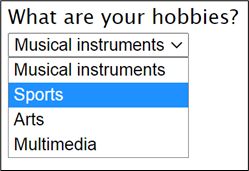

The selected attribute
The selected attribute on the opening <option> tag causes it to be pre-selected, much like the effect of checked attribute for radio and checkboxes.